

5.7b MCP Advanced
💡 TL;DR: Master OAuth authentication, permission management, and common MCP service configuration.
📝 Course Notes
Key concepts from this lesson:
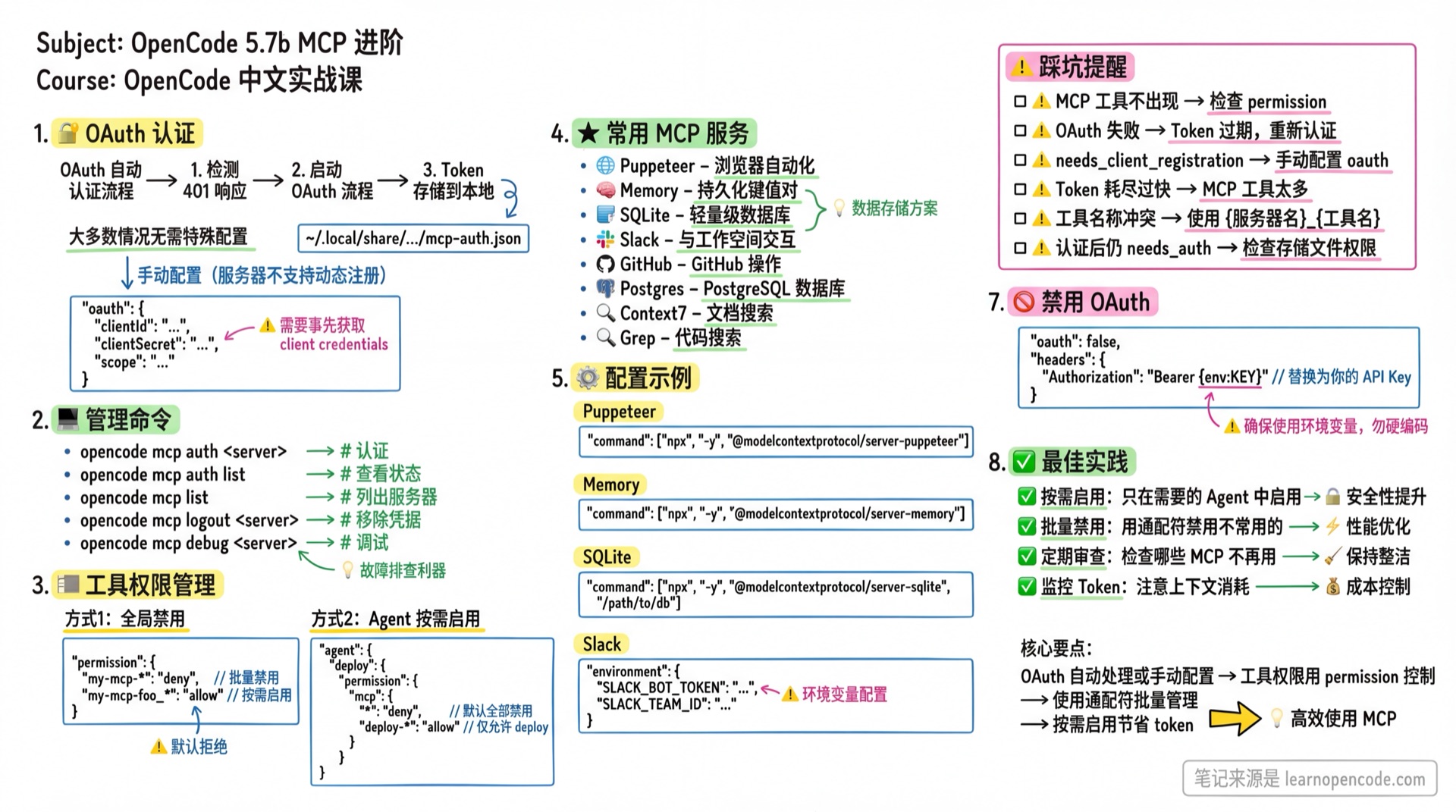
What You'll Learn
- Use OAuth authentication to connect to secure services
- Manage MCP tool permissions and enable/disable status
- Integrate MCP usage in rule files
- Configure common MCP services
OAuth Authentication
OpenCode automatically handles the OAuth authentication flow:
- Detects 401 response and initiates OAuth flow
- Uses Dynamic Client Registration (RFC 7591) (if server supports it)
- Tokens are securely stored in
~/.local/share/opencode/mcp-auth.json
Automatic Authentication
In most cases, no special configuration is needed:
{
  "mcp": {
    "my-oauth-server": {
      "type": "remote",
      "url": "https://mcp.example.com/mcp"
    }
  }
}
OpenCode will automatically prompt for authentication on first use.
Pre-registered Client
If the server doesn't support dynamic registration, configure client credentials:
{
  "mcp": {
    "my-oauth-server": {
      "type": "remote",
      "url": "https://mcp.example.com/mcp",
      "oauth": {
        "clientId": "{env:MY_MCP_CLIENT_ID}",
        "clientSecret": "{env:MY_MCP_CLIENT_SECRET}",
        "scope": "tools:read tools:execute"
      }
    }
  }
}
Management Commands
# Manually trigger authentication
opencode mcp auth my-oauth-server

# View authentication status for all servers
opencode mcp auth list

# List all MCP servers
opencode mcp list

# Remove stored credentials
opencode mcp logout my-oauth-server

# Debug connection and OAuth flow
opencode mcp debug my-oauth-server
Debug Command Details
When MCP connection issues arise, use the debug command to diagnose:
opencode mcp debug my-oauth-serverSample Output:
MCP OAuth Debug

Server: my-oauth-server
URL: https://mcp.example.com/mcp
Auth status: ✓ authenticated
  Access token: eyJhbGciOiJSUzI1NiIs...
  Expires: 2026-02-15T12:00:00.000Z
  Refresh token: present

Testing connection...
HTTP response: 200 OK
✓ Server responded successfully
Status Meanings:
| Status | Description |
|---|---|
authenticated | Authenticated, ready to use |
expired | Token expired, needs re-authentication |
not authenticated | Not authenticated, run opencode mcp auth |
Server Status Icons
Icons in opencode mcp list output:
| Icon | Status | Description |
|---|---|---|
| ✓ | connected | Connected, tools available |
| ○ | disabled | Disabled via enabled: false |
| ⚠ | needs_auth | Requires OAuth authentication |
| ✗ | failed | Connection failed, check error message |
Sample Output:
MCP Servers

✓ filesystem connected
    npx -y @modelcontextprotocol/server-filesystem /projects
✓ context7 connected
    https://mcp.context7.com/mcp
○ disabled-server disabled
    npx -y some-command
✗ failed-server failed
    Connection timeout
Disabling OAuth
If the server uses API Key instead of OAuth:
{
  "mcp": {
    "my-api-key-server": {
      "type": "remote",
      "url": "https://mcp.example.com/mcp",
      "oauth": false,
      "headers": {
        "Authorization": "Bearer {env:MY_API_KEY}"
      }
    }
  }
}
Tool Permission Management
MCP tools are registered using {server_name}_{tool_name} format.
Global Disable
Use permission configuration to disable MCP tools:
{
  "mcp": {
    "my-mcp-foo": {
      "type": "local",
      "command": ["bun", "x", "my-mcp-command-foo"]
    },
    "my-mcp-bar": {
      "type": "local",
      "command": ["bun", "x", "my-mcp-command-bar"]
    }
  },
  "permission": {
    "my-mcp-foo_*": "deny"
  }
}
Use wildcards to batch disable:
{
  "permission": {
    "my-mcp*": "deny"
  }
}
Per-Agent Enable
After global disable, enable in specific agents:
{
  "mcp": {
    "my-mcp": {
      "type": "local",
      "command": ["bun", "x", "my-mcp-command"]
    }
  },
  "permission": {
    "my-mcp*": "deny"
  },
  "agent": {
    "my-agent": {
      "permission": {
        "my-mcp*": "allow"
      }
    }
  }
}
Wildcard Rules
*matches zero or more characters?matches exactly one character- Other characters match literally
Integration in Rule Files
Configure default MCP usage in AGENTS.md or .opencode/agents/*.md:
## MCP Usage Rules

When querying documentation, use the `context7` tool.

When unsure how to implement a feature, use `gh_grep` to search GitHub for code examples.
This way the AI automatically selects appropriate MCP tools without specifying them in every prompt.
Tool Auto-Discovery and Updates
Tool Naming Convention
MCP tools are registered using {server_name}_{tool_name} format:
filesystem server's read_file tool → filesystem_read_file
context7 server's search tool     → context7_search
Auto-Discovery Mechanism
After configuring an MCP server, OpenCode automatically discovers all tools the server provides:
- Connect to MCP server
- Call
listToolsto get tool list - Convert tools to OpenCode format
- Add to current session's tool set
Tool Change Notifications
If the MCP server's tool list changes (tools added/removed), OpenCode automatically receives notifications and updates:
- Server sends tool list change notification (
notifications/tools/list_changed) - OpenCode re-fetches the tool list
- No need to restart OpenCode
This means: after upgrading an MCP server version, new tools become automatically available.
Recommended MCP Services
Sentry
Connect to Sentry monitoring platform to query errors and issues:
{
  "mcp": {
    "sentry": {
      "type": "remote",
      "url": "https://mcp.sentry.dev/mcp",
      "oauth": {}
    }
  }
}
First-time use requires authentication:
opencode mcp auth sentryUsage example:
use sentry to view recent unresolved errorsContext7
Search documentation for various libraries and frameworks:
{
  "mcp": {
    "context7": {
      "type": "remote",
      "url": "https://mcp.context7.com/mcp"
    }
  }
}
Use API Key for higher rate limits:
{
  "mcp": {
    "context7": {
      "type": "remote",
      "url": "https://mcp.context7.com/mcp",
      "headers": {
        "CONTEXT7_API_KEY": "{env:CONTEXT7_API_KEY}"
      }
    }
  }
}
Usage example:
use context7 to query how Cloudflare Worker caches JSON responsesGrep by Vercel
Search code snippets on GitHub:
{
  "mcp": {
    "gh_grep": {
      "type": "remote",
      "url": "https://mcp.grep.app"
    }
  }
}
Usage example:
use the gh_grep tool to search how to configure custom domains in SST frameworkFilesystem
Local filesystem operations (sandbox mode):
{
  "mcp": {
    "filesystem": {
      "type": "local",
      "command": [
        "npx", "-y", "@modelcontextprotocol/server-filesystem",
        "/path/to/allowed/directory"
      ]
    }
  }
}
Postgres
Query PostgreSQL databases directly:
{
  "mcp": {
    "postgres": {
      "type": "local",
      "command": ["npx", "-y", "@modelcontextprotocol/server-postgres"],
      "environment": {
        "POSTGRES_CONNECTION_STRING": "{env:DATABASE_URL}"
      }
    }
  }
}
Puppeteer
Browser automation and web scraping:
{
  "mcp": {
    "puppeteer": {
      "type": "local",
      "command": ["npx", "-y", "@modelcontextprotocol/server-puppeteer"]
    }
  }
}
Memory
Persistent key-value storage:
{
  "mcp": {
    "memory": {
      "type": "local",
      "command": ["npx", "-y", "@modelcontextprotocol/server-memory"]
    }
  }
}
SQLite
Lightweight database operations:
{
  "mcp": {
    "sqlite": {
      "type": "local",
      "command": ["npx", "-y", "@modelcontextprotocol/server-sqlite", "/path/to/database.db"]
    }
  }
}
Slack
Interact with Slack workspace:
{
  "mcp": {
    "slack": {
      "type": "local",
      "command": ["npx", "-y", "@modelcontextprotocol/server-slack"],
      "environment": {
        "SLACK_BOT_TOKEN": "{env:SLACK_BOT_TOKEN}",
        "SLACK_TEAM_ID": "{env:SLACK_TEAM_ID}"
      }
    }
  }
}
Common Pitfalls
| Issue | Cause | Solution |
|---|---|---|
| MCP tools not appearing | Globally disabled or agent not configured | Check permission configuration |
| OAuth authentication failed | Token expired or invalid credentials | Run opencode mcp logout && opencode mcp auth |
Status shows needs_client_registration | Server doesn't support dynamic registration | Configure clientId in oauth |
| Context quickly exhausted | Too many MCP tools enabled | Disable unused MCPs, use per-agent enable |
| Tool name conflicts | Multiple MCPs have same-named tools | Use {server_name}_{tool_name} format to distinguish |
| Still shows needs_auth after auth | Token storage failed | Check ~/.local/share/opencode/mcp-auth.json permissions |
| Command format error | command written as string instead of array | ❌ "command": "npx xxx" → ✓ "command": ["npx", "-y", "xxx"] |
| URL format error | URL missing protocol prefix | ❌ "url": "example.com/mcp" → ✓ "url": "https://example.com/mcp" |
| Browser can't auto-open | Running in SSH/remote environment | OpenCode displays URL, manually copy to browser |
| Timeout too short | timeout set to 1000ms | Remote servers recommend 2000+-10000ms, default 30000ms |
| Forgot to enable server | enabled: false but wondering why it doesn't work | Enabled by default, check if mistakenly set to false |
Lesson Summary
You learned:
- OAuth Authentication: Automatic handling or manual client credential configuration
- Debug Commands:
opencode mcp debugto diagnose connection issues - Status Icons: Meanings of ✓ ○ ⚠ ✗ four states
- Permission Management: Using
permissionto control tool access - Tool Auto-Discovery: Tool naming rules and change notification mechanism
- Rule Integration: Configuring default MCP usage in AGENTS.md
- Common MCPs: Sentry, Context7, Grep, Postgres, etc.
Related Resources
- 5.7a MCP Basics - MCP introduction and configuration
- 5.1 Configuration Basics - Configuration file basics
- 5.2 Custom Agents - Agent tool configuration
- 5.5 Permissions - Detailed permission settings
- Official MCP Docs - English original
Next Lesson Preview
In the next lesson, we'll learn about IDE integration, making OpenCode work seamlessly with editors like VS Code and JetBrains.